
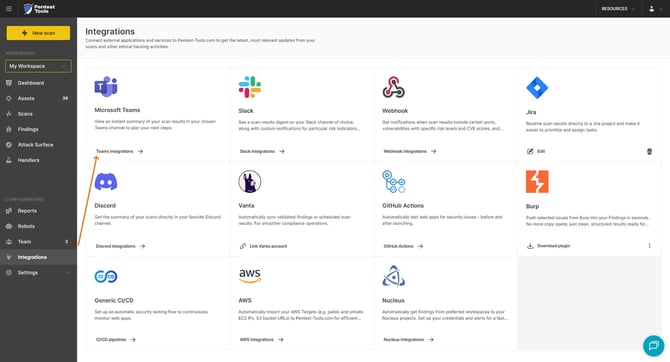
To set up a Microsoft Teams integration, navigate to your Pentest-Tools.com dashboard and find the integrations menu in the sidebar.
In this section, you can connect third-party applications to use for notifications (such as Slack and Webhooks), or for managing vulnerability workflows (JIRA). We’ll continue to add integrations going forward.
- Click on Teams integrations
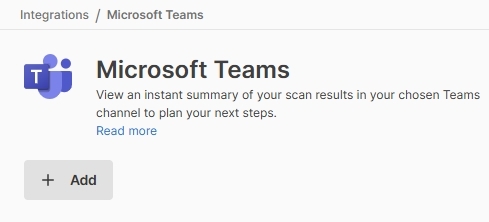
- Click + Add
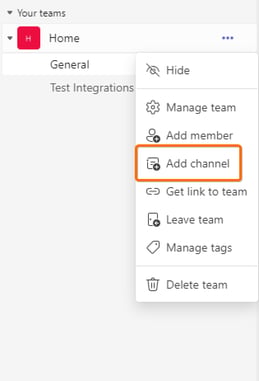
- Now go over to your Teams app and, unless you want to use an existing channel on which to get notifications, create a new one as shown below:
- Click on Add Channel
- Click on Add Channel
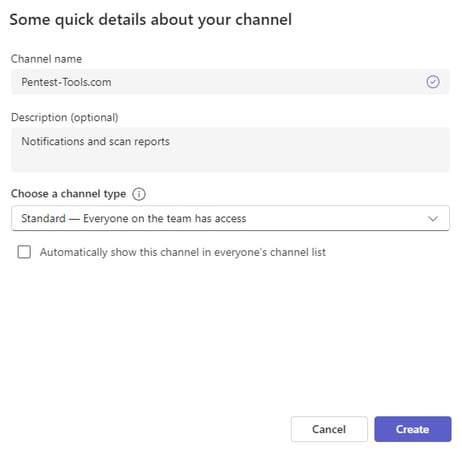
- Provide a name and description (the last being optional)
- Once the channel is created, you need to configure a Workflow. You can do this by clicking Workflows in the three-dot menu of the channel:
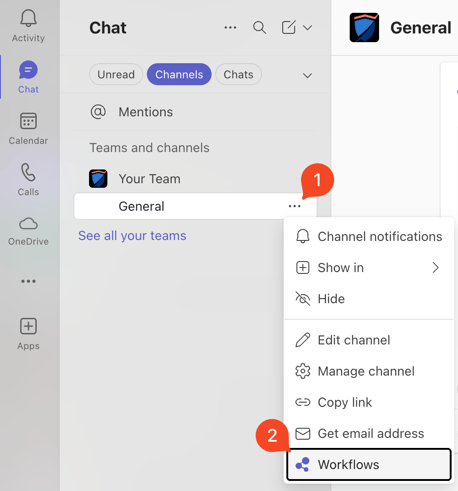
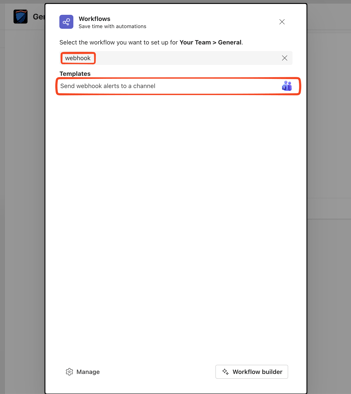
- In the Workflows window, search for "webhook". A predefined template called "Send webhook alerts to a channel" should pop up. Click on it to use it.
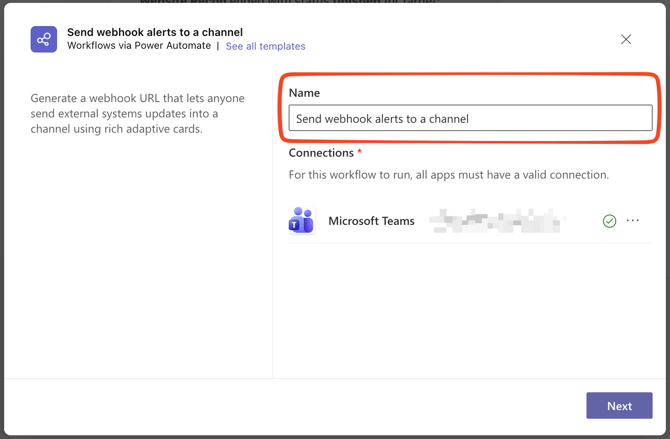
- (Optional): You can edit the name of the workflow. Hit Next when ready.
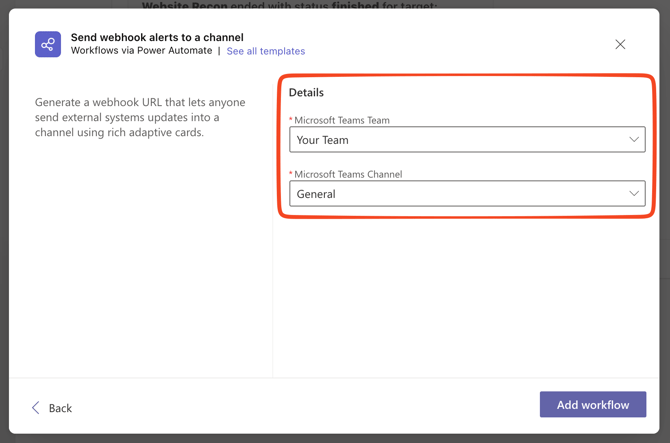
- Check that the Team and Channel are correct. Update them if needed. Hit Add workflow when ready.
- The workflow was added successfully and a URL for it has been created. Copy the URL and click Done.

- Now go back to the Microsoft Teams Integrations page in your Pentest-Tools.com account and add the Webhook URL to the input field, together with a name and description (optional)
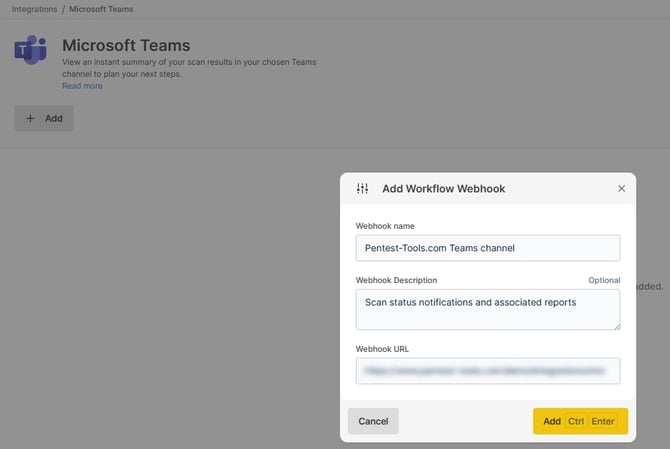
- Click on Add and you will see a confirmation that the webhook was created.
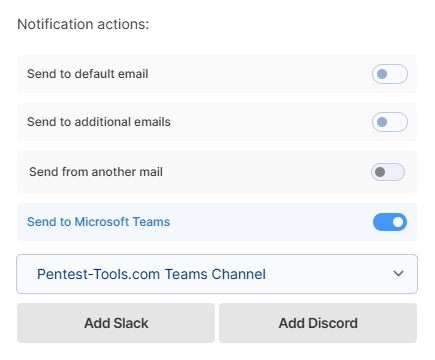
- You can now start using this integration to get notifications fine-tuned to your specific needs. To do this, go to Settings -> Notifications and add a new one or edit an existing one. Make sure you enable the Send to Microsoft Teams action.
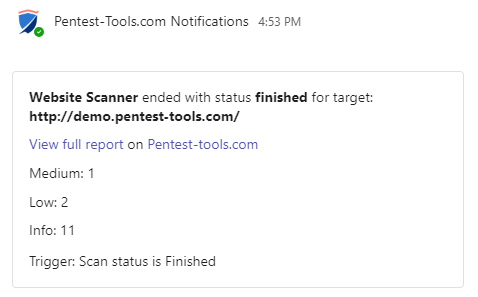
To learn more about notifications, please see our dedicated support category.