---
title: Slack Integration
description: Get notified whenever something important happens - directly to the slack channel(s) of your preference
---
[Skip to content](https://support.pentest-tools.com/slack-integration#main-content)
[](https://support.pentest-tools.com/)
Open main navigation
Close main navigation
- [Raise a ticket](https://share.hsforms.com/1iXO7OCiAQV67C-9QIn-4Dgbqmk4)
[Raise a ticket](https://share.hsforms.com/1iXO7OCiAQV67C-9QIn-4Dgbqmk4)
How can we help you?
- There are no suggestions because the search field is empty.
1. [Support Center](https://support.pentest-tools.com/)
2. [Integrations](https://support.pentest-tools.com/integrations)
November 25, 2025
# Slack Integration
## Get notified whenever something important happens - directly to the slack channel(s) of your preference
To configure a slack integration, go to your Pentest-Tools.com dashboard and find the [integrations menu](https://app.pentest-tools.com/integrations) on the sidebar. Here you can configure integrations with 3rd-party apps which you can later use for notifications (Slack, Webhooks), or vulnerability management workflows ([JIRA](https://support.pentest-tools.com/jira-integration)). More integrations will be added in the future.
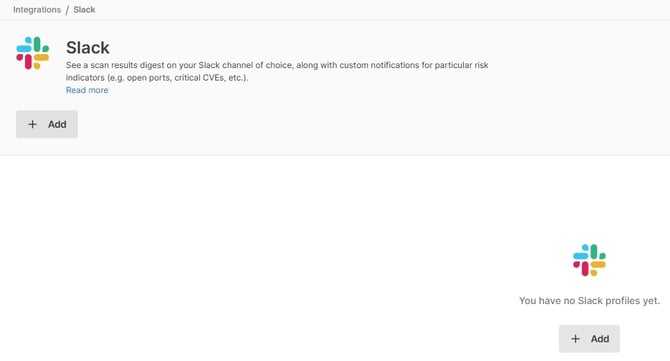
To start one integration, click on **+ Add**
Multiple slack channels can be linked from this page so you can send data to multiple channels.
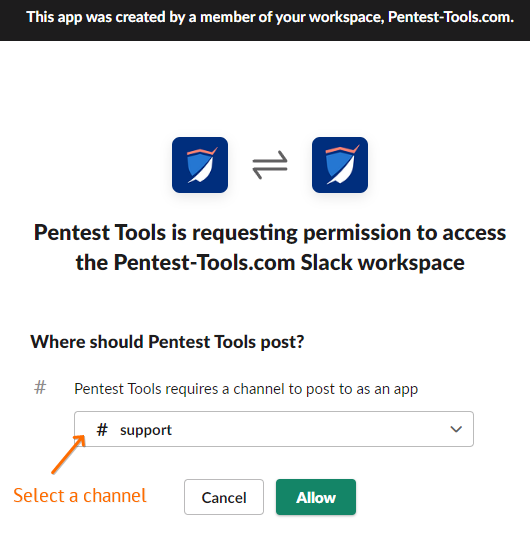
You can select a slack channel #example or send the notifications to yourself or @another.person
After adding a Slack channel, you can use it by configuring a [new Notification](https://app.pentest-tools.com/notifications) and enabling the Slack action.
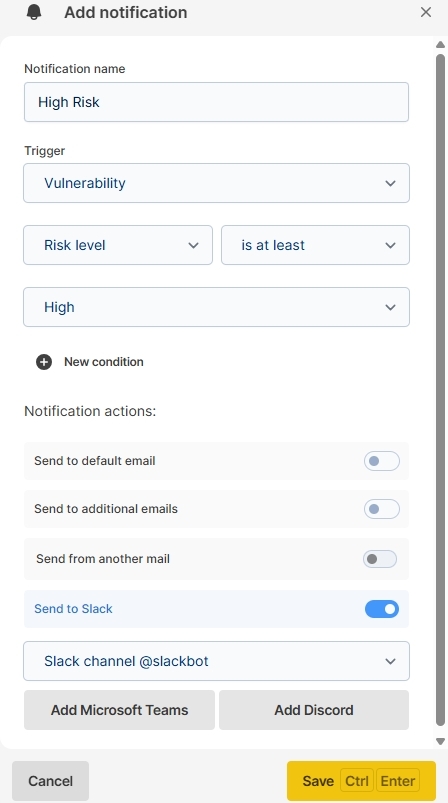
The notification will trigger based on the rules you have set and a message like this will be sent:
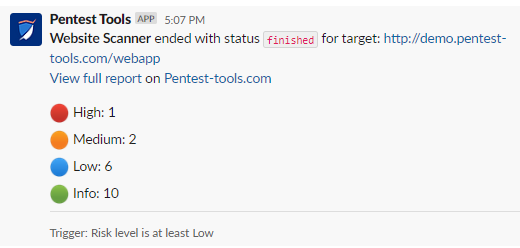
For privacy and security reasons, to be able to access the full scan result, you will first need to be authenticated in the Pentest-Tools.com platform before opening the link to **View the full report**.
To learn more about **notifications**, please see our dedicated support category.
- [Getting started](https://support.pentest-tools.com/getting-started#main-content)
- [Tips & Tricks](https://support.pentest-tools.com/getting-started#tips-tricks)
- [First Steps](https://support.pentest-tools.com/getting-started#first-steps)
- [Tools and Scans](https://support.pentest-tools.com/tools-and-scans#main-content)
- [Network Infrastructure Testing](https://support.pentest-tools.com/tools-and-scans#network-infrastructure-testing)
- [Authenticated Scanning](https://support.pentest-tools.com/tools-and-scans#authenticated-scanning)
- [Frequently Asked Questions (FAQ)](https://support.pentest-tools.com/tools-and-scans#frequently-asked-questions-faq)
- [Offensive Tools](https://support.pentest-tools.com/tools-and-scans#offensive-tools)
- [Web Application Testing](https://support.pentest-tools.com/tools-and-scans#web-application-testing)
- [Reconnaissance](https://support.pentest-tools.com/tools-and-scans#reconnaissance)
- [Account and Billing](https://support.pentest-tools.com/account-and-billing#main-content)
- [Billing and Payment](https://support.pentest-tools.com/account-and-billing#billing-and-payment)
- [Account Management](https://support.pentest-tools.com/account-and-billing#account-management)
- [Assets, Targets & Workspaces](https://support.pentest-tools.com/assets-targets-workspaces#main-content)
- [Workspaces](https://support.pentest-tools.com/assets-targets-workspaces#workspaces)
- [Assets & Targets](https://support.pentest-tools.com/assets-targets-workspaces#assets-targets)
- [Reporting and Vulnerability Management](https://support.pentest-tools.com/reporting-and-vulnerability-management#main-content)
- [Notifications](https://support.pentest-tools.com/reporting-and-vulnerability-management#notifications)
- [Attack Surface](https://support.pentest-tools.com/reporting-and-vulnerability-management#attack-surface)
- [Reporting](https://support.pentest-tools.com/reporting-and-vulnerability-management#reporting)
- [Findings](https://support.pentest-tools.com/reporting-and-vulnerability-management#findings)
- [VPN Profiles](https://support.pentest-tools.com/vpn-profiles)
- [Integrations](https://support.pentest-tools.com/integrations)
- [Automation](https://support.pentest-tools.com/automation#main-content)
- [Scheduler](https://support.pentest-tools.com/automation#scheduler)
- [Scan Groups](https://support.pentest-tools.com/automation#scan-groups)
- [Pentest Robots](https://support.pentest-tools.com/automation#pentest-robots)
- [Change Log](https://support.pentest-tools.com/change-log)
- [Data Security](https://support.pentest-tools.com/data-security)
[](http://Pentest-Tools.com)
[Go to Pentest-Tools.com](https://pentest-tools.com/)
Copyright © 2026 PentestTools S.A.